Blog
3D Perception: a LiDAR-Camera Pipeline — Part 4: 2D Camera Detections with YOLO
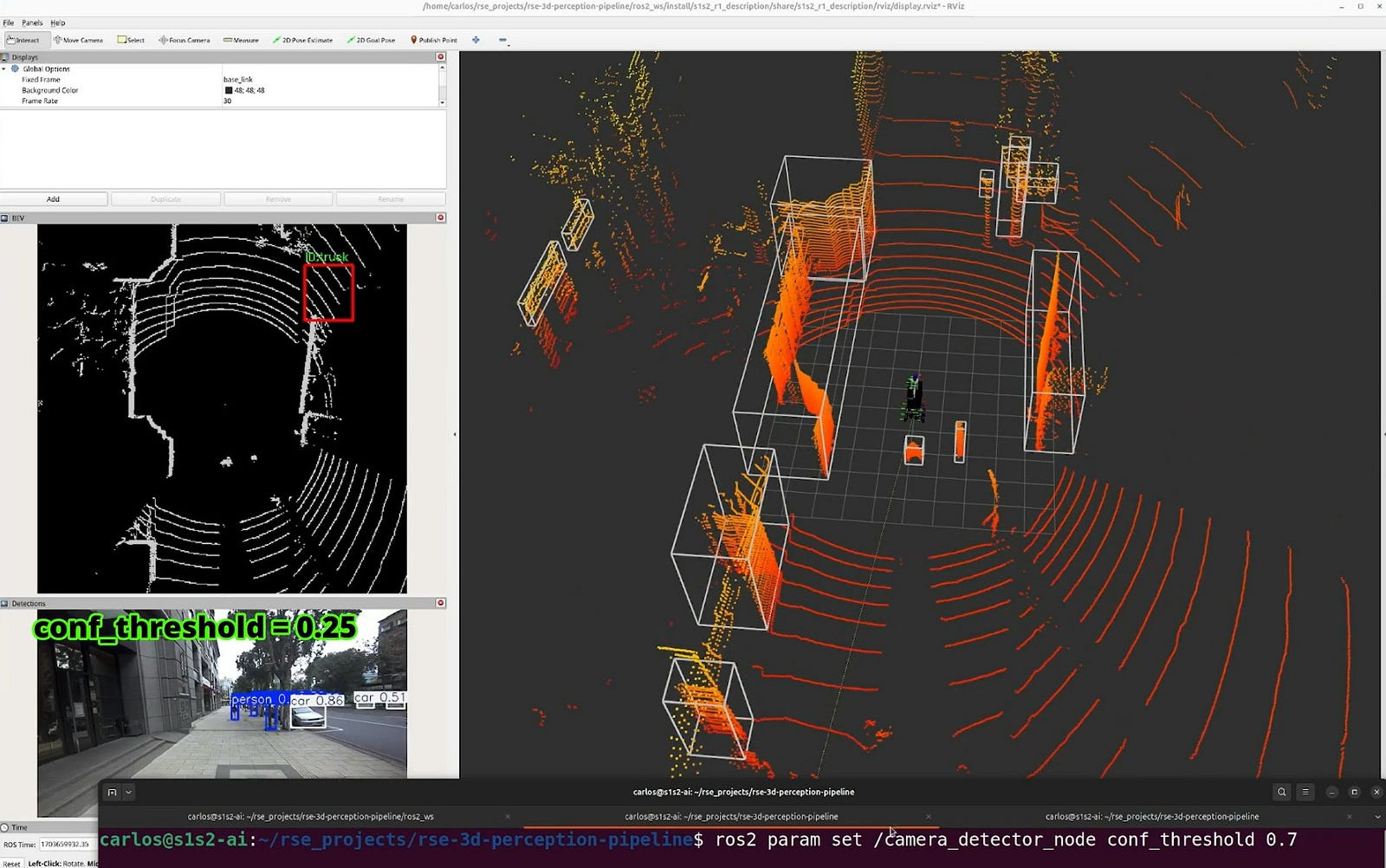
This article is part of a hands-on series building a 3D Perception Pipeline with ROS 2 Jazzy. In modern robotics, seeing isn’t enough — robots need spatial intelligence to locate objects in a 3D world.
The Project: We are building a unified system that fuses 3D LiDAR and ZED2 stereo camera data using YOLO for detection and Open3D for point cloud processing. Everything is managed via Pixi, making the environment reproducible on different systems.
The Series: These modular lessons collectively form a full end-to-end project. You can follow the step-by-step roadmap or jump into specific sensor logic as needed.
The Roadmap
Make sure to read the first 3 articles before this one.
3D Perception: a LiDAR-Camera Pipeline — Part 1: Setting Up Your Development Environment
3D Perception: a LiDAR-Camera Pipeline — Part 2: The ROS 2 Graph & Perception Data Flow
3D Perception: a LiDAR-Camera Pipeline — Part 3: 3D Point Cloud Processing & Clustering
3D Perception: a LiDAR-Camera Pipeline — Part 4: 2D Camera Detections with YOLO
3D Perception: a LiDAR-Camera Pipeline - Part 6: Projecting 3D Intelligence into a 2D Map as a…
In the previous article, we processed our raw 3D LiDAR point clouds and used DBSCAN clustering to group them into distinct, physical bounding boxes. This gave our perception pipeline spatial awareness — we knew exactly where obstacles were located in the environment, but we still had no idea what they were.
Now, we will introduce the semantic brain of our system. In this lesson, we are integrating YOLO (You Only Look Once) to process our 2D camera feeds. We will extract 2D bounding boxes and class IDs (such as ‘Car’, ‘Truck’, or ‘Pedestrian’) from raw RGB images. This step gives our pipeline the visual intelligence it needs to identify the world, perfectly setting the stage for our upcoming Frustum Fusion where we will merge this 2D vision with our 3D depth.
Learning Objectives
By the end of this article, you will be able to:
- Integrate Deep Learning with ROS 2: Seamlessly run a YOLO inference engine inside a standard ROS 2 Node.
- Master the CV Bridge: Convert high-bandwidth ROS 2 Image messages into OpenCV formats and back again.
- Handle Standard Vision Messages: Populate
Detection2DArraymessages to communicate with downstream fusion nodes. - Optimize Inference Performance: Configure confidence thresholds and model versions to balance latency and accuracy.
- Visualize AI Predictions: Publish annotated image streams to debug and verify your model’s performance in RViz.
We will now look at the code section by section.
Part 1: The Import Section
This block brings in the libraries needed for AI inference, image conversion, and standard ROS 2 messaging.
import rclpy
from rclpy.node import Node
from sensor_msgs.msg import Image
from vision_msgs.msg import Detection2DArray, Detection2D, ObjectHypothesisWithPose
from cv_bridge import CvBridge
from ultralytics import YOLO
import cv2p- Ultralytics (YOLO): Our core AI engine. It handles the deep learning “inference” to find objects in images.
- CvBridge: The essential “translator” that converts ROS Image messages into OpenCV formats that Python can process.
- Vision Messages: Specifically
Detection2DArray, which is the 2D equivalent of the 3D clusters we built in the previous article.
Part 2: Node Initialization & AI Setup
We define the class and load the YOLO model weights.
class CameraDetectorNode(Node):
    def __init__(self):
        super().__init__('camera_detector_node')

        # Parameters
        self.declare_parameter('model_version', 'yolov8n') # Options: yolov8n, yolo11n
        self.declare_parameter('conf_threshold', 0.25)

        model_ver = self.get_parameter('model_version').value
        self.conf_threshold = self.get_parameter('conf_threshold').value

        # Load model (downloads if not present)
        model_path = f"{model_ver}.pt"
        self.model = YOLO(model_path)
        self.class_names = self.model.names

self.bridge = CvBridge()- Modular Models: By using
model_version, you can switch between “Nano” models for speed or larger models for better accuracy. - Adjustable Confidence: The
conf_thresholdparameter acts as a sensitivity filter. It allows you to define the minimum probability (e.g., 25%) required for the AI to “believe” a detection is real. This is critical for filtering out low-probability “ghost” detections in noisy environments. - Class Names: We store
self.model.namesso we can later label our detections with “Car” or “Person” instead of just a number.
Part 3: Subscriptions and Publishers
This section defines the “input” video feed and the “output” detection data.
        # Subscription
        self.subscription = self.create_subscription(
            Image,
            'zed2/zed/rgb/image_rect_color',
            self.listener_callback,
            10)

        # Publisher
        self.detection_pub = self.create_publisher(Detection2DArray, '/detection/camera_2d', 10)
        self.annotated_pub = self.create_publisher(Image, '/detection/camera_annotated', 10)
self.get_logger().info(f'Camera Detector Node started with model: {model_path}')- The Input: We listen to the rectified color image from the ZED2 camera.
- The output:
/detection/camera_2dwill be later consumed by a downstream task that fuses 2D detections with 3D clusters. - The Debug Stream:
/detection/camera_annotatedallows us to see the AI’s “thoughts” by publishing a video feed with boxes and labels drawn on top.
Part 4: The listener_callback (The Inference Loop)
This is where every frame of video is processed by the AI.
   def listener_callback(self, msg):
        # Live-update parameters from the ROS 2 server
        self.conf_threshold = self.get_parameter('conf_threshold').value

        # 1. Convert ROS Image to OpenCV
        try:
            cv_image = self.bridge.imgmsg_to_cv2(msg, desired_encoding='bgr8')
        except Exception as e:
            self.get_logger().error(f'Could not convert image: {e}')
            return
        # 2. Run Inference (CPU mode by default)
results = self.model.predict(cv_image, conf=self.conf_threshold, verbose=False)- Step 1: We bridge the data from the ROS world into the OpenCV world.
- Step 2: We pass the image to YOLO. The
confparameter ensures we only “believe” detections that meet our confidence threshold.
Part 5: Packaging the Detections
Just like with LiDAR clusters, we must package our 2D results into a standard format.
        # Prepare Detection2DArray
        detections = Detection2DArray()
        detections.header = msg.header

        for result in results:
            for box in result.boxes:
                # Extract box coordinates
                # box.xywh returns [x_center, y_center, width, height]
                xywh = box.xywh[0].cpu().numpy()
                cls_id = int(box.cls[0].cpu().item())
                conf = float(box.conf[0].cpu().item())

                detection = Detection2D()
                detection.header = msg.header

                # Bounding box
                detection.bbox.center.position.x = float(xywh[0])
                detection.bbox.center.position.y = float(xywh[1])
                detection.bbox.size_x = float(xywh[2])
                detection.bbox.size_y = float(xywh[3])

                # Hypothesis
                hypothesis = ObjectHypothesisWithPose()
                hypothesis.hypothesis.class_id = self.class_names[cls_id]
                hypothesis.hypothesis.score = conf
                detection.results.append(hypothesis)

                detections.detections.append(detection)

        # Publish results
self.detection_pub.publish(detections)- Coordinate Extraction: We pull the
xywh(center coordinates and dimensions) for every box found. - The “What”: We attach the
class_id(e.g., “pedestrian”) and the confidence score to the message.
Part 6: Visualizing the Results
To verify our AI is working correctly, we publish a visual feed.
        # --- Visualize the results ---
        result = results[0]
        annotated_frame = result.plot()

        # --- Publish the annotated image ---
        try:
            # Convert the annotated OpenCV image back to a ROS Image message
            annotated_msg = self.bridge.cv2_to_imgmsg(annotated_frame, "bgr8")
            # Copy the header from the input message to keep the timestamp sync
            annotated_msg.header = msg.header
            # Publish the message
            self.annotated_pub.publish(annotated_msg)
        except Exception as e:
            self.get_logger().error(f'Failed to convert and publish annotated image: {e}')
By publishing the annotated_frame, you can open RViz and see the bounding boxes overlaid on the live camera feed, ensuring your model is identifying the correct objects.
Now that the node is running, try adjusting the “confidence” of your AI from the terminal:
# 1. Lower the threshold to see more 'uncertain' objects (may cause false positives)
ros2 param set /camera_detector_node conf_threshold 0.1

# 2. Raise the threshold to only see objects the AI is 90% sure about
ros2 param set /camera_detector_node conf_threshold 0.9Also published on Medium.