Blog
3D Perception: a LiDAR-Camera Pipeline — Part 2: The ROS 2 Graph & Perception Data Flow
This article is part of a hands-on series building a 3D Perception Pipeline with ROS 2 Jazzy. In modern robotics, seeing isn’t enough — robots need spatial intelligence to locate objects in a 3D world.
The Project: We are building a unified system that fuses 3D LiDAR and ZED2 stereo camera data using YOLO for detection and Open3D for point cloud processing. Everything is managed via Pixi, making the environment reproducible on different systems.
The Series: These modular lessons collectively form a full end-to-end project. You can follow the step-by-step roadmap or jump into specific sensor logic as needed.
The Roadmap
Make sure to read the first article before this one.
3D Perception: a LiDAR-Camera Pipeline — Part 1: Setting Up Your Development Environment
3D Perception: a LiDAR-Camera Pipeline — Part 2: The ROS 2 Graph & Perception Data Flow
3D Perception: a LiDAR-Camera Pipeline — Part 3: 3D Point Cloud Processing & Clustering
3D Perception: a LiDAR-Camera Pipeline — Part 4: 2D Camera Detections with YOLO
In the previous article, we investigated how to set up our robotics perception environment using Pixi. In this article, we move from the “how” of the environment to the “why” of the architecture. We will treat the pipeline as a “black box” and use ROS 2 introspection tools to peek inside. Understanding how these nodes connect via topics and interfaces is crucial before we write a single line of code.
Learning Objectives
By the end of this lesson, you will be able to:
- Map a ROS 2 Graph: Identify the role of specific nodes in a multi-sensor pipeline.
- Audit Topic Traffic: Use ros2 topic commands to verify data flow and publisher/subscriber relationships.
- Decode ROS 2 Interfaces: Inspect complex message types such as
Detection3DArray. - Visualize System Architecture: Use
rqt_graphto generate a “Big Picture” view of the perception system.
Understanding the Running Nodes
With your pipeline launched and the bag file playing (see Part 1 of this series to learn how), let’s see who is participating in the conversation.
Run: ros2 node list
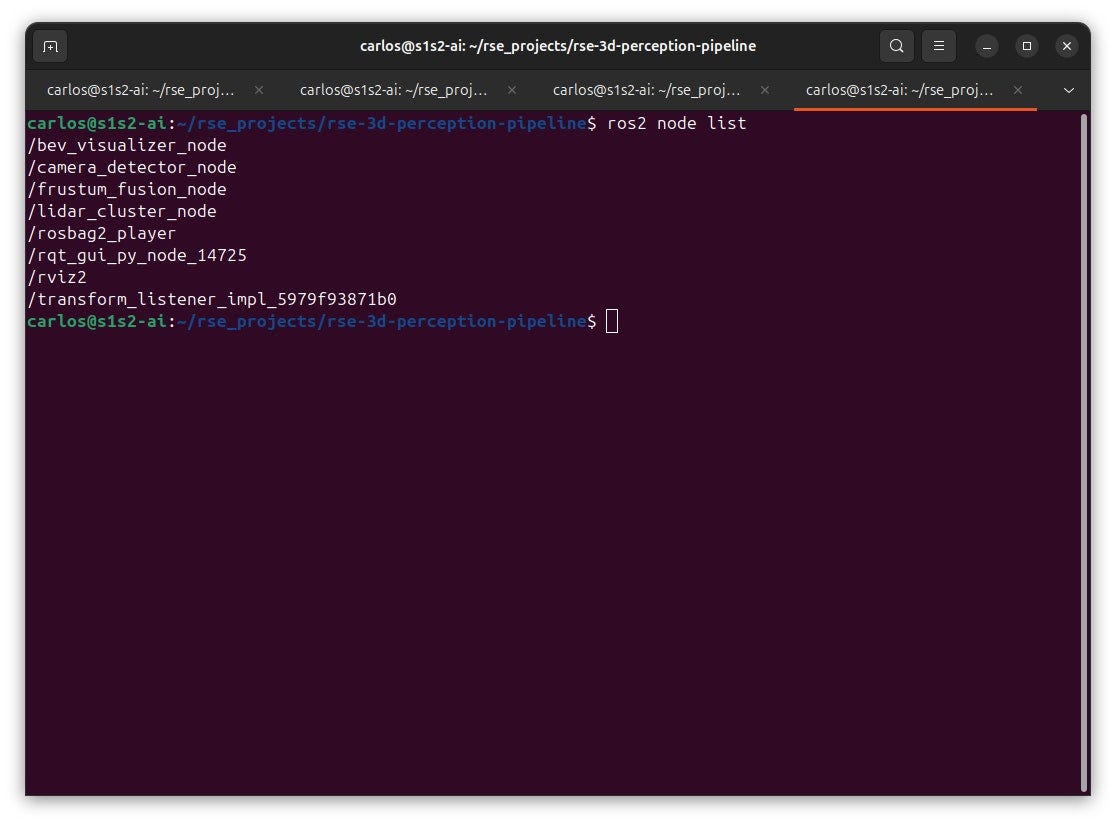
The key nodes in our perception stack are:
- /camera_detector_node: Performs 2D object detection (YOLO) on raw camera frames.
- /lidar_cluster_node: Processes raw 3D point clouds to find clusters of points that represent objects.
- /frustum_fusion_node: The “brain” of the project; it matches 2D camera detections with 3D LiDAR clusters.
- /bev_visualizer_node: Generates the Bird’s Eye View image you see in RViz.
- /rosbag2_player: Acts as the “virtual robot,” publishing recorded sensor data.
- /robot_state_publisher: Manages the TF (Transform) tree, telling ROS where the camera is located relative to the LiDAR.
To see the “business card” of a node, run: ros2 node info /bev_visualizer_node
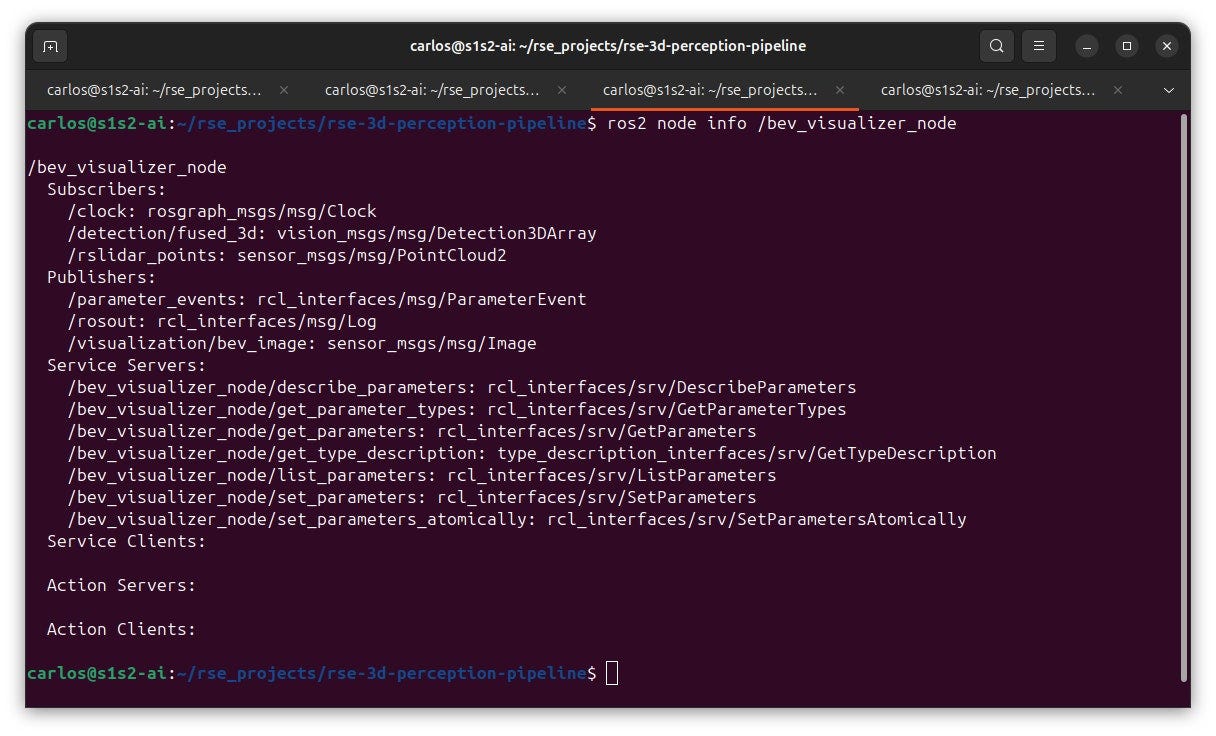
The output shows that this node subscribes to /rslidar_points and to /detection/fused_3d and then publishes /visualization/bev_image. This confirms its role: it takes the final 3D detections and draws them onto a Bird’s Eye View (BEV) generated from the point clouds.
Understanding the Data: Topics and Types
In ROS 2, a Topic is the name of the “bus” or channel, while the Message is the actual data format traveling on that bus.
Run: ros2 topic list
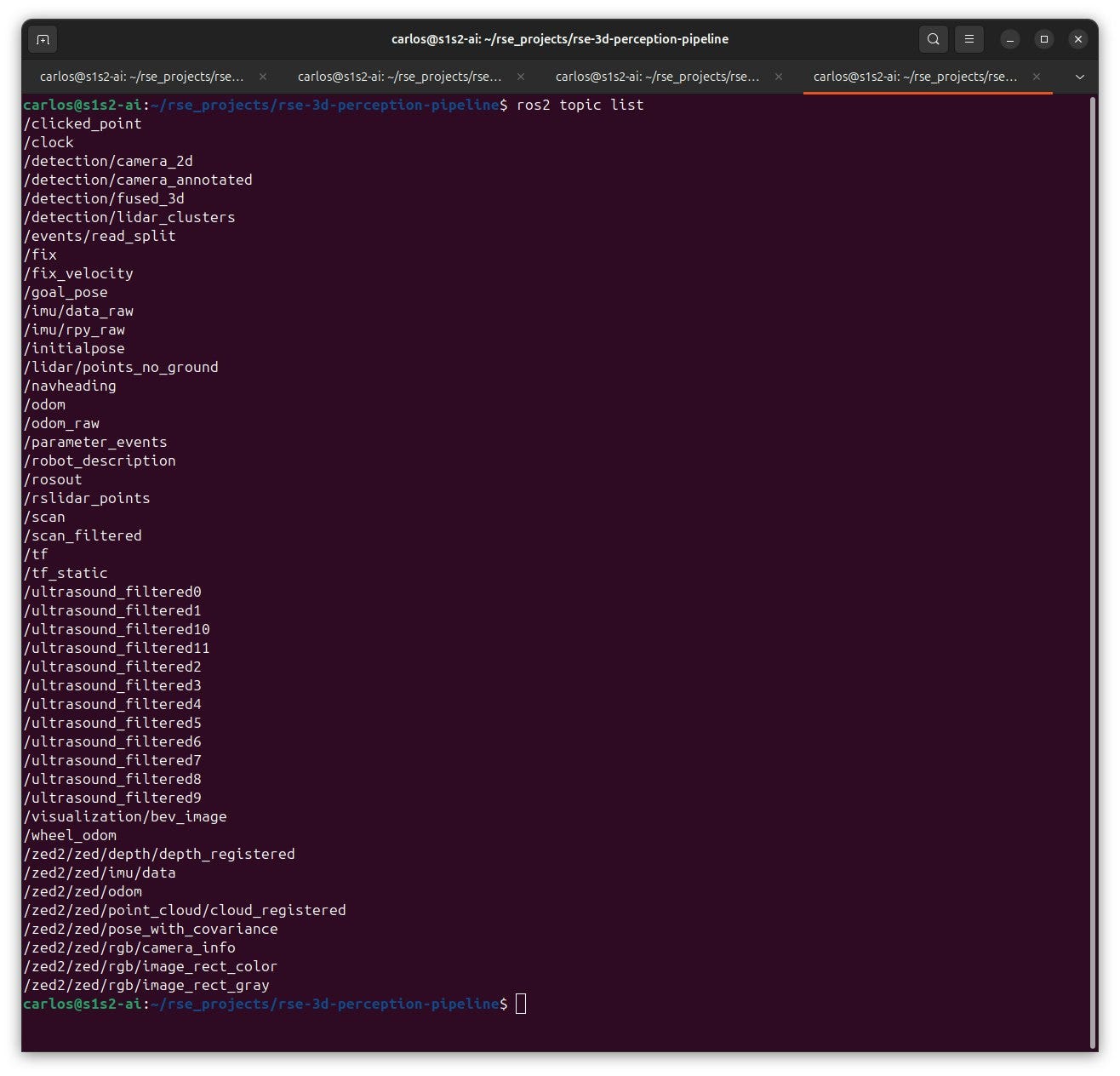
While the robot has many sensors (ultrasound, IMU, etc.), we focus on the perception chain:
- Camera →
/zed2/.../image_rect_color - LiDAR →
/rslidar_points - Detections →
/detection/… - Fusion Output →
/visualization/bev_image
To see who is talking to whom on a specific topic, use the “verbose” info command:
Run: ros2 topic info -v /detection/fused_3d
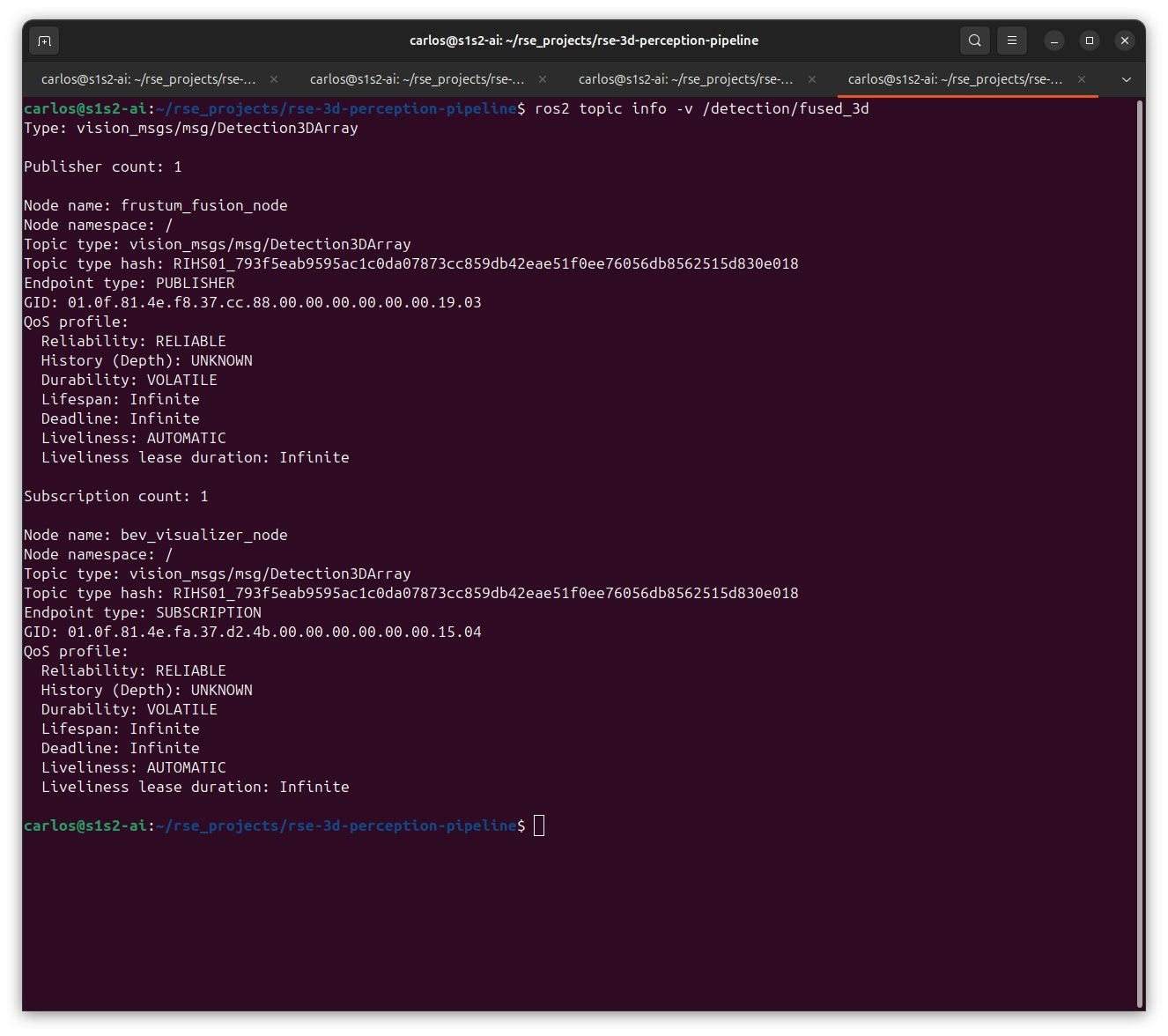
Here, we see the frustum_fusion_node is the Publisher (the sender) and the bev_visualizer_node is the Subscription (the receiver).
Understanding Interfaces
Interfaces is the umbrella term in ROS 2 that covers Messages (.msg), Services (.srv), and Actions (.action). For this perception pipeline, we only use Messages.
To see the “skeleton” of any message, like a 3D detection, run: ros2 interface show vision_msgs/msg/Detection3DArray
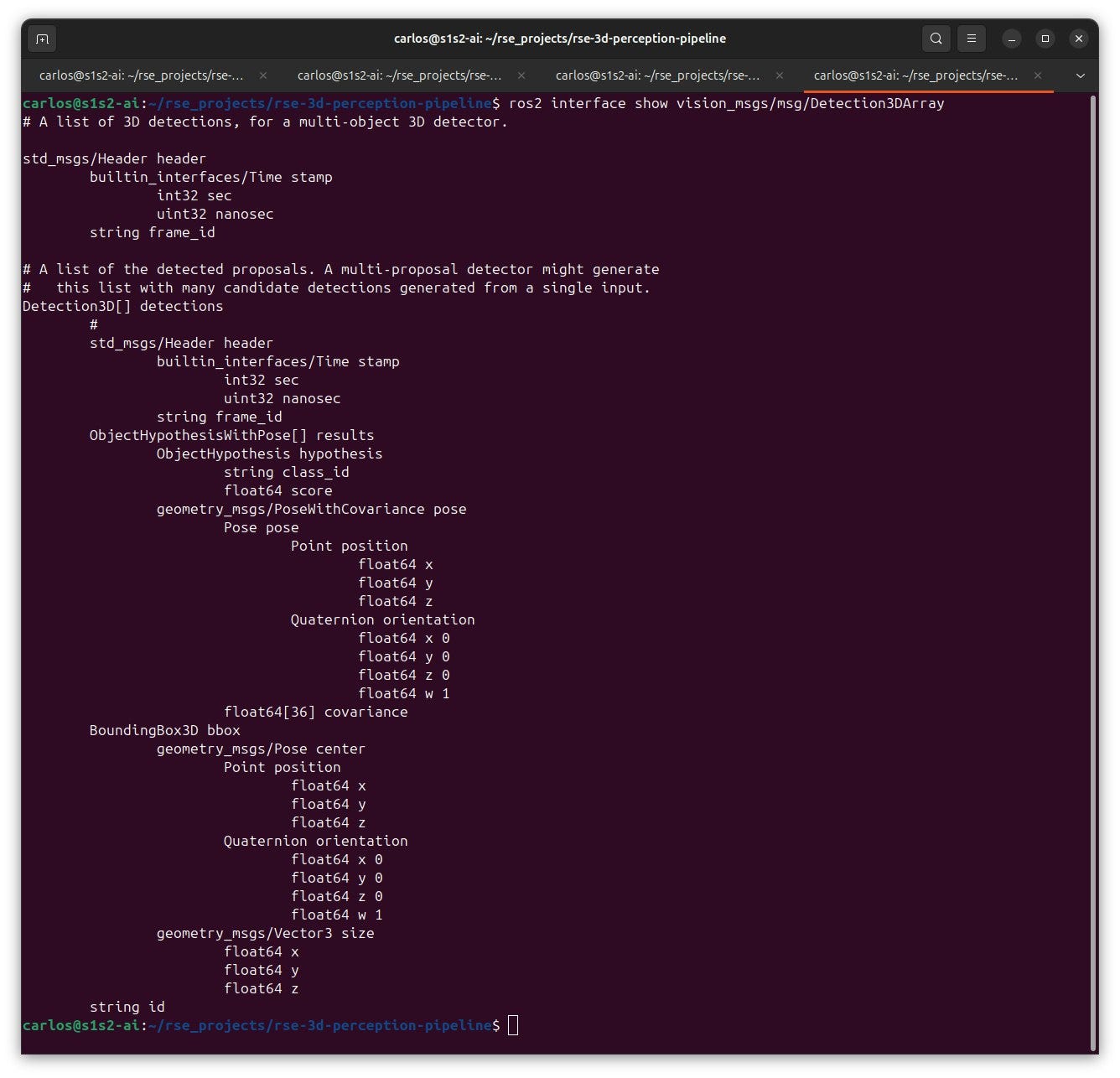
From the output, we see a recursive structure:
- Header: Metadata (timestamp and
frame_id). - Detections: An array of
Detection3Dobjects. - Results: The “Hypothesis” (e.g., “Class: Car”, “Score: 0.95”).
- Bbox: The
BoundingBox3Dcontaining a Center (position/orientation) and Size (dimensions).
To see this data live, run: ros2 topic echo /detection/fused_3d
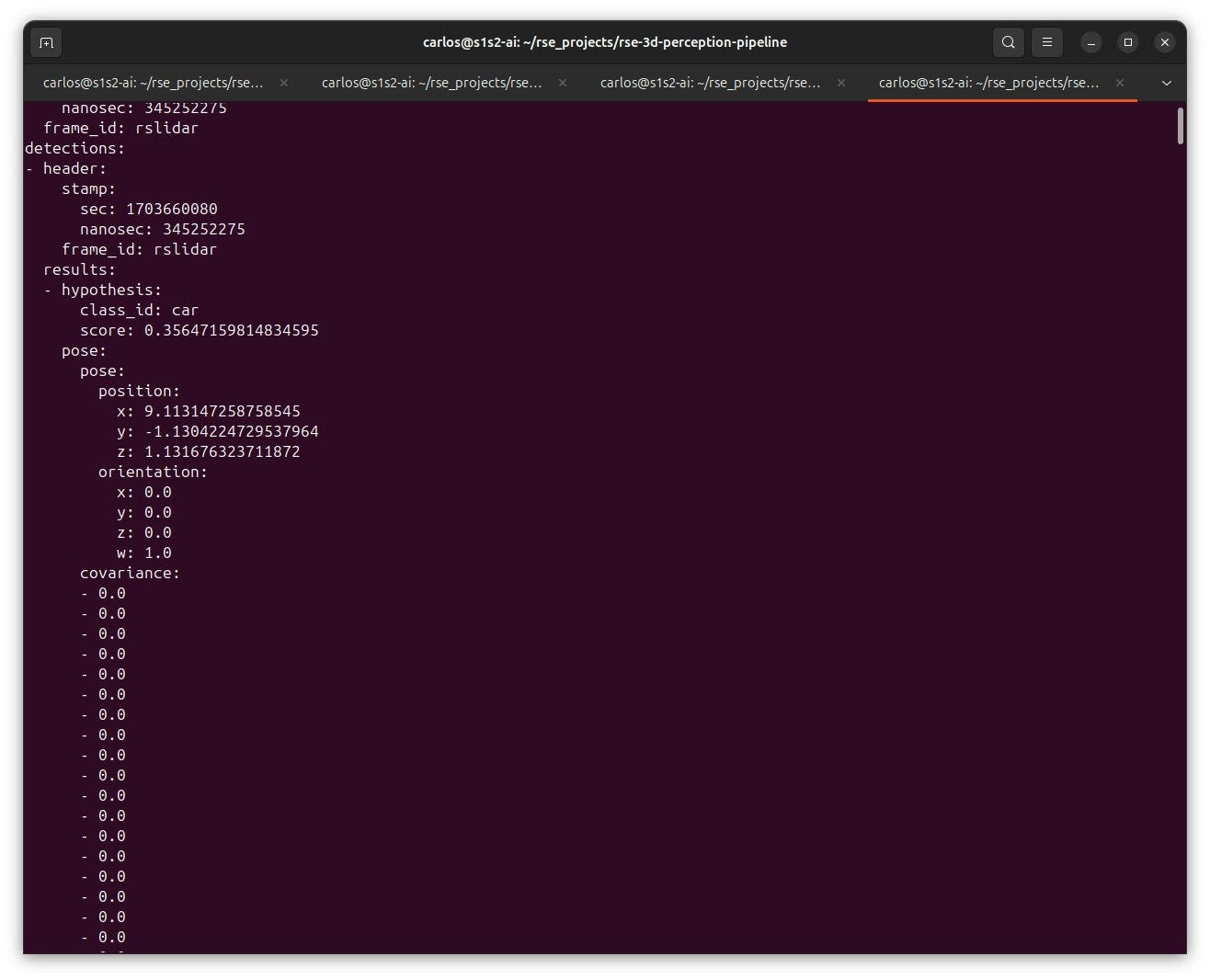
This shows the real-time math: the X, Y, and Z coordinates of a detected “car” relative to the robot’s sensor.
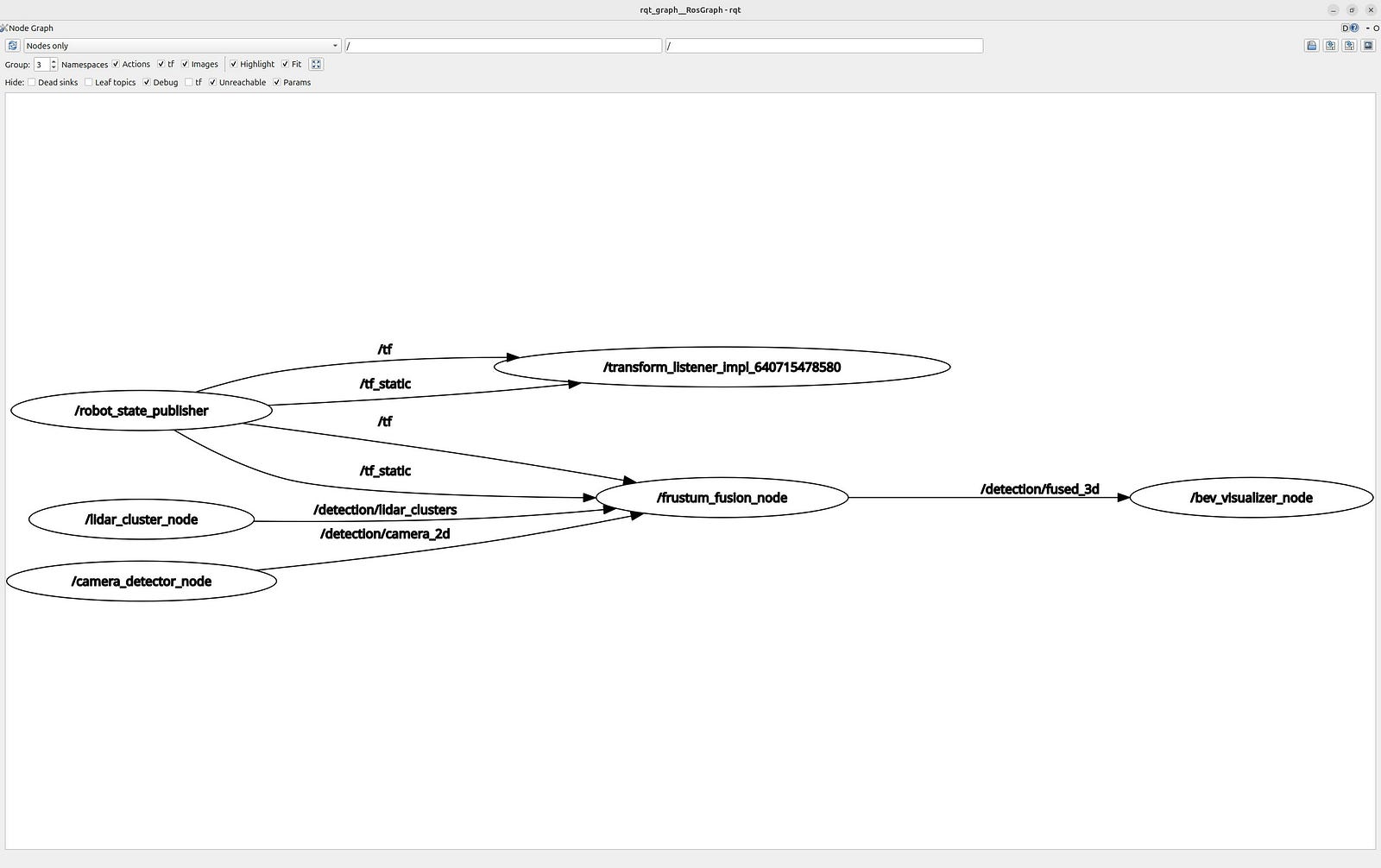
The ROS 2 Graph: The Big Picture
To visualize how all these pieces fit together, we use rqt_graph.
Run: ros2 run rqt_graph rqt_graph
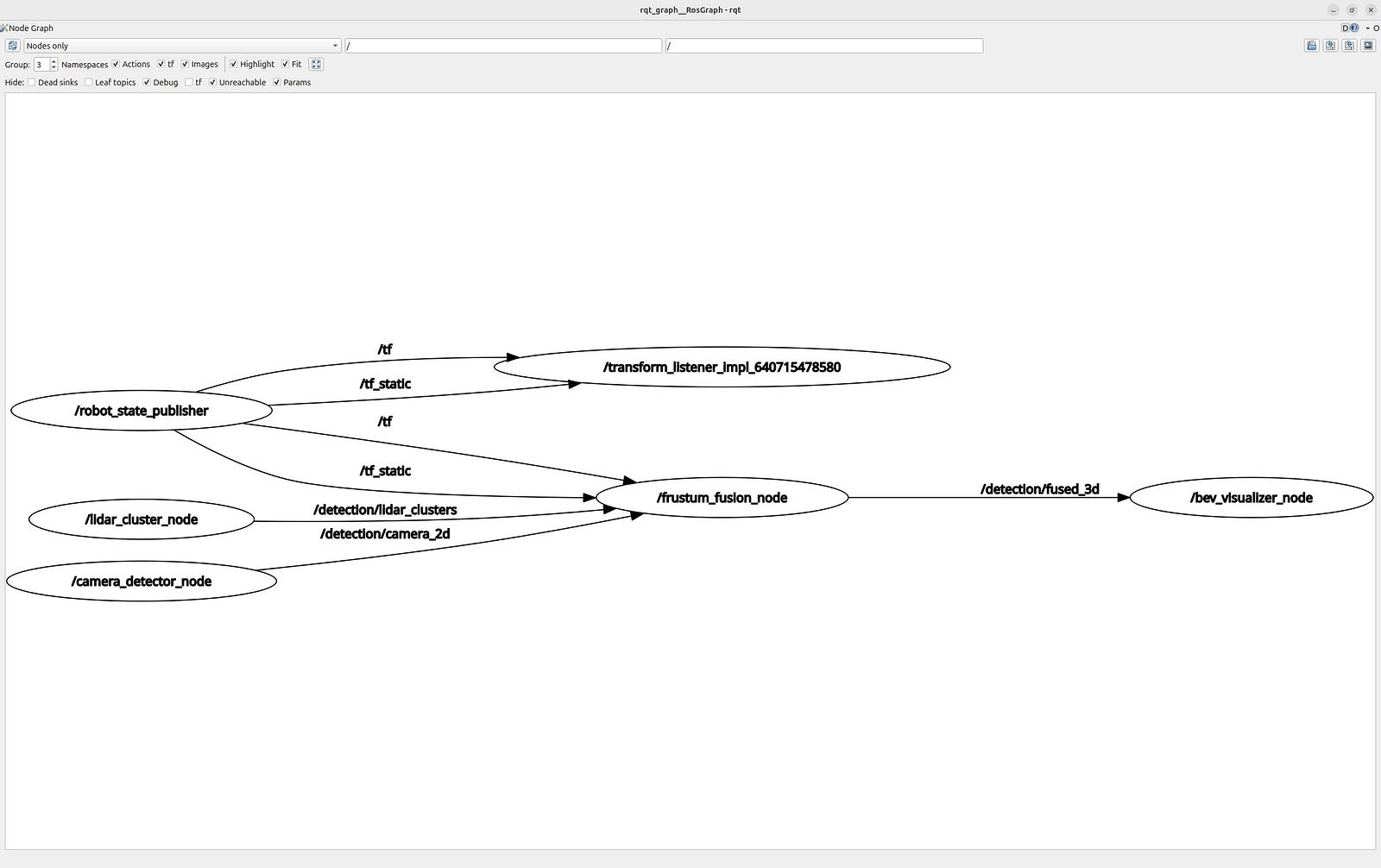
In this graph:
- Ovals are Nodes (processes).
- Arrows (Edges) are Topics (data flow).
Let’s study the graph to understand the flow of data:
You’ve now moved past the “black box” stage. By introspecting the ROS 2 graph, you’ve identified the workers (nodes), the communication lines (topics), and the language they speak (interfaces). With the architecture mapped and the data flow verified, the “plumbing” is complete. You are now ready to dive deep into the source code in follow-up articles.
Also published on Medium.