Blog
3D Perception: a LiDAR-Camera Pipeline — Part 1: Setting Up Your Development Environment
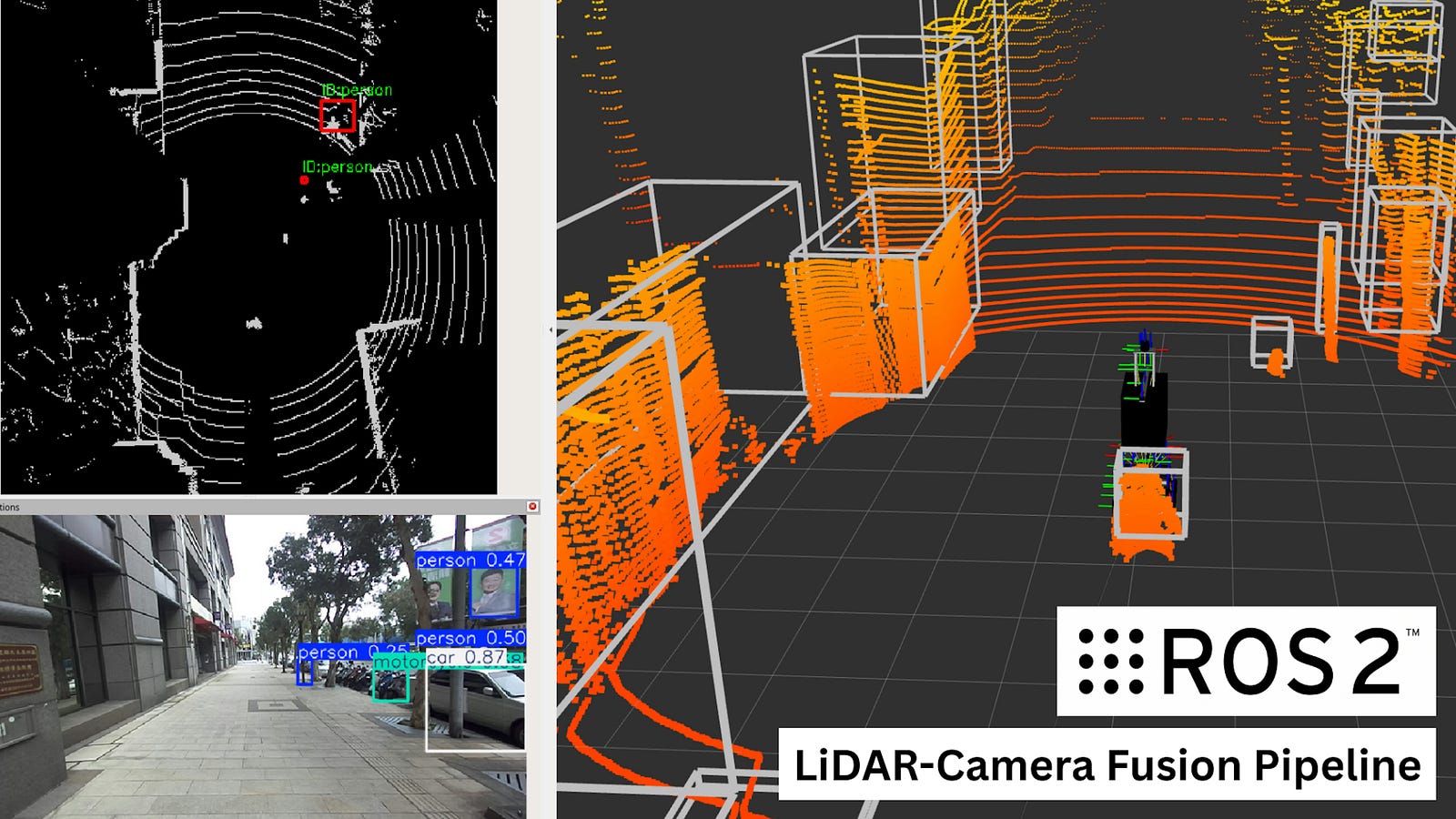
This article is part of a hands-on series building a 3D Perception Pipeline with ROS 2 Jazzy. In modern robotics, seeing isn’t enough — robots need spatial intelligence to locate objects in a 3D world.
The Project: We are building a unified system that fuses 3D LiDAR and ZED2 stereo camera data using YOLO for detection and Open3D for point cloud processing. Everything is managed via Pixi, making the environment reproducible on different systems.
The Series: These modular lessons collectively form a full end-to-end project. You can follow the step-by-step roadmap or jump into specific sensor logic as needed.
The Roadmap
3D Perception: a LiDAR-Camera Pipeline — Part 1: Setting Up Your Development Environment
3D Perception: a LiDAR-Camera Pipeline — Part 2: The ROS 2 Graph & Perception Data Flow
3D Perception: a LiDAR-Camera Pipeline — Part 3: 3D Point Cloud Processing & Clustering
3D Perception: a LiDAR-Camera Pipeline — Part 4: 2D Camera Detections with YOLO
Before we can fuse sensors or run AI models, we need a rock-solid foundation. Setting up a robotics environment is traditionally one of the most frustrating parts of development — often leading to “dependency hell” where one library update breaks your entire system.
In this lesson, we use Pixi, a next-generation package manager. Pixi ensures that the exact versions of ROS 2, PyTorch, and Open3D you need are installed into an isolated “bubble” (a local environment). This keeps your main operating system clean and ensures that the code that works on my machine will work on yours.
Learning Objectives
By completing this section, you will be able to:
- Provision a Linux Development Environment: Install the necessary low-level build tools and Git for ROS 2 development.
- Manage Multi-Repo Workspaces: Properly clone and organize main project repositories alongside external dependencies like
vision_msgs. - Utilize Modern Package Management: Learn the Pixi workflow, including environment initialization (
pixi install) and activation (pixi shell). - Deconstruct
pixi.toml: Understand how to define channels, multi-platform support, and complex dependencies (AI + Robotics) in a single configuration file. - Validate a Perception Stack: Execute a full workspace build with
colconand launch a pre-configured perception pipeline to verify system integrity using ROS 2 bags and RViz.
Step 1: System Requirements
While the environment we are building is cross-platform, this course is officially tested and verified on Ubuntu (22.04 or 24.04).
To get started, you need basic development tools and Git installed on your system. Open your terminal and run:
# Update your package list
sudo apt update

# Install essential build tools and Git
sudo apt install -y build-essential git curl

# Install the LTTng libraries
sudo apt-get install liblttng-ust-dev
Note on Cross-Platform Support: The configuration we are using technically supports Windows and macOS (Intel and Apple Silicon). However, these platforms often require additional steps — such as configuring X11 for GUI tools or managing path lengths in Windows — which are not covered in this curriculum. If you are attempting this on a non-Linux system and get stuck, please reach out for private support.
Step 2: Clone the Project’s Repository
The repository for this project includes a ROS 2 workspace with all of the code, plus Pixi configuration files to set up your working environment.
To clone the repository, please use the following command:
git clone https://github.com/carlos-argueta/rse-3d-perception-pipeline.gitStep 3: Clone the Vision Messages Repository
The vision messages repository includes ROS 2 interfaces for publishing perception-related data and RVIZ plugins for visualizing it. To clone and subsequently build these packages, navigate to the ROS 2 workspace’s source folder and clone the vision_msgs repository.
# Navigate to the src folder
cd rse-3d-perception-pipeline/ros2_ws/src/

# Make sure to checkout the jazzy branch
git clone -b jazzy https://github.com/ros-perception/vision_msgs.git
Step 4: Set up the Project Environment with Pixi
In traditional robotics, installing ROS 2 is a “system-wide” affair that can often break other Python projects on your computer. Pixi is a modern package manager (built on the Conda ecosystem) that solves three major problems:
- Isolation: It creates a “bubble” for this project. Everything — from ROS 2 Jazzy to PyTorch — lives inside the .pixi folder in your project directory. It doesn’t touch your system files.
- Reproducibility: It uses a lock file to ensure that every student in this course is using the exact same version of every library.
- One-Tool Workflow: It replaces apt, pip, and rosdep with a single tool.
Anatomy of the pixi.toml
The pixi.toml file is the “brain” of your project. It defines exactly what your environment looks like. Let’s look at the file provided for this course:
- [workspace]: Defines the project name and the channels (where Pixi looks for software). We use
robostack-jazzyfor ROS 2 andconda-forgefor general libraries. - platforms: This tells Pixi to ensure the environment is solvable for Linux, Windows, and Mac.
- [dependencies]: This is your shopping list.
- ROS Packages: Notice we include
ros-jazzy-desktopand specific message types likesensor-msgs. - Build Tools:
colcon-rosis included so we can compile our workspace. - AI Stack: We define
ultralytics(for YOLO),open3d(for point clouds), andpytorchall in one place.
[workspace]
name = "rse-3d-perception-pipeline"
channels = ["robostack-jazzy", "conda-forge"]
# Added support for Lunux, Windows, macOS (Intel), and macOS (Apple Silicon)
platforms = ["linux-64", "win-64", "osx-64", "osx-arm64"]

[dependencies]
ros-jazzy-desktop = "*"
ros-jazzy-sensor-msgs = "*"
ros-jazzy-sensor-msgs-py = "*"
ros-jazzy-cv-bridge = "*"
ros-jazzy-tf2-ros = "*"
ros-jazzy-tf2-geometry-msgs = "*"
ros-jazzy-robot-state-publisher = "*"
ros-jazzy-xacro = "*"

colcon-ros = ">=0.5.0,<0.6"
colcon-common-extensions = ">=0.3.0,<0.4"

ultralytics = "*"
open3d = "*"
numpy = "*"
opencv = ">=4.12.0,<5"

pytorch = ">=2.0"
torchvision = ">=0.15"
Installing the Pixi Environment
Now, let’s actually build the “bubble.”
Install Pixi on your machine (if you haven’t already):
curl -fsSL https://pixi.sh/install.sh | sh
# Restart your terminal after installation
Initialize the project by navigating to the project folder and running the install command:
# Go to the project's root folder
cd rse-3d-perception-pipeline

# Install the pixi environment as per the pixi.toml specifications
pixi install
This will take a few minutes the first time. Pixi is downloading an entire ROS 2 distribution and the AI libraries specifically for this project.
Whenever you want to work on this course, enter the environment by running:
pixi shellYour terminal prompt will change, indicating that you are now inside the isolated ROS 2 environment.
Step 5: Download the ROS 2 Bag
This project uses prerecorded robot data. The next step is to download and extract the ROS 2 bag file for this project.
# Download the data
wget -O linkou.zip "https://www.dropbox.com/scl/fi/tdxin6bzw01siucdv3kgv/linkou-2023-12-27-2-med.zip?rlkey=rcz93bhozjsdymcpn5dqz6rly&st=do015oqz&dl=0"
# Extract the data
unzip linkou.zipStep 6: Build and Source the Workspace
We are now ready to build and source the workspace. This will allow us to test that our setup is ready. Make sure that the Pixi shell is active.
# Navigate to the ROS 2 workspace
cd rse-3d-perception-pipeline/ros2_ws

# Build the workspace
colcon build

# Source the workspace
source install/setup.bash
Step 7: Test the Setup
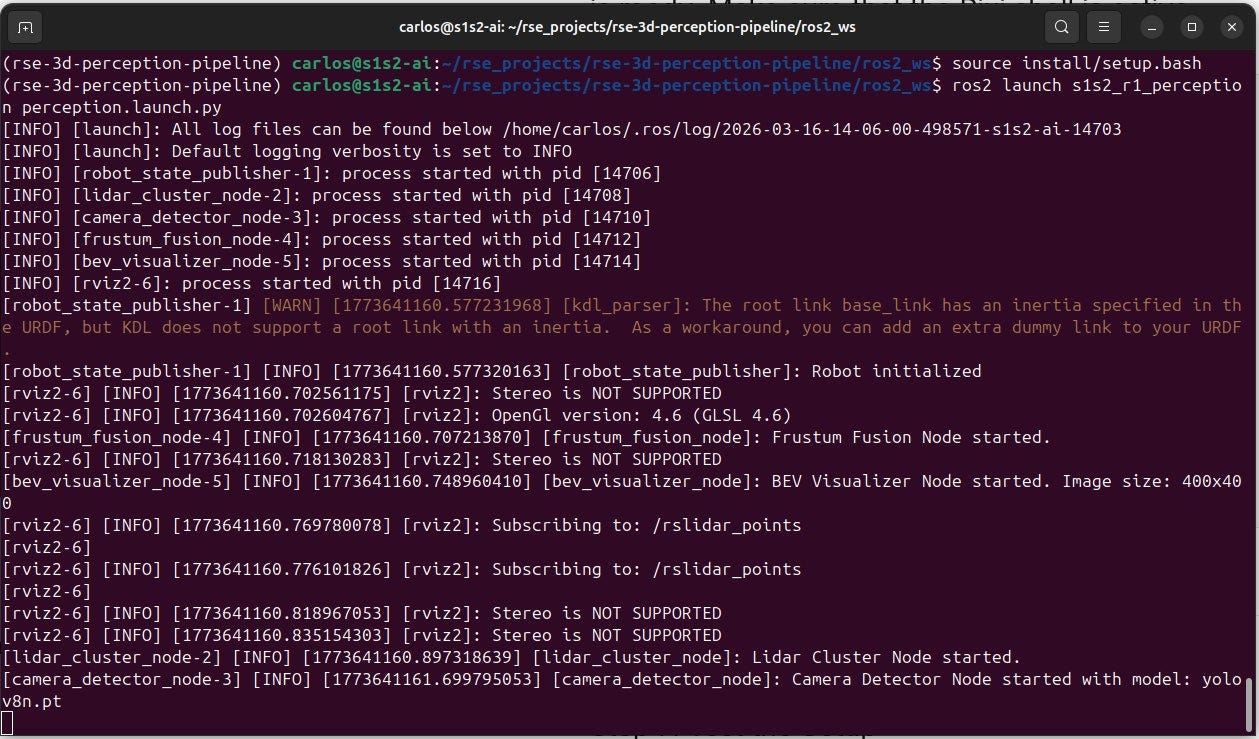
The last step is to run the entire 3D pipeline and visually confirm that it works.
ros2 launch s1s2_r1_perception perception.launch.pyYou should see an output similar to the one below:
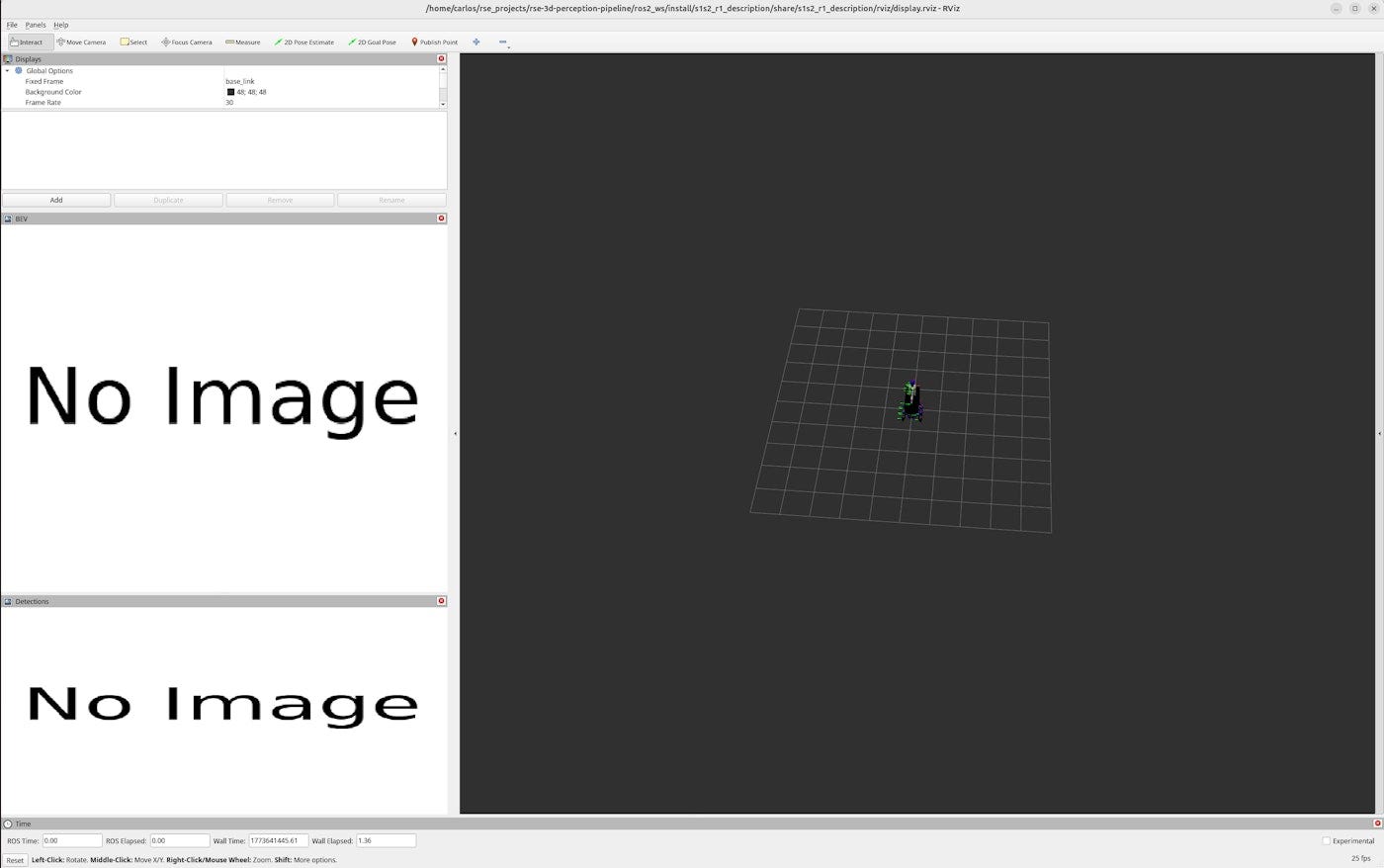
The RVIZ window will open, and it should look like the screenshot below:
Lastly, on a different terminal, let’s replay the data from the ROS bag to see the pipeline in action:
# Open a new terminal
# Navigate to where you downloaded and unzipped the bag, then play it with:
ros2 bag play linkou-2023-12-27-2-med/ --clock⚠ A Note on Hardware & Performance
While this perception pipeline is designed to be accessible and can run entirely on a CPU, it is a computationally demanding process. The pipeline simultaneously manages:
- Deep Learning Inference: Running YOLO for object detection.
- Point Cloud Processing: Filtering and clustering thousands of LiDAR points via Open3D.
- Projection Math: Calculating transformations between 2D and 3D frames in real-time.
If your CPU is underpowered, you will notice a latency gap. In the Bird’s Eye View (BEV) specifically, the 3D bounding boxes may appear to “lag” behind the actual point cloud clusters as the robot moves. This happens because the CPU cannot finish the AI inference and fusion math fast enough to keep up with the incoming sensor data. If you see this delay and don’t have access to another machine, try closing other resource-intensive applications.
Congratulations! You have successfully navigated the most difficult hurdle in robotics: The Environment Setup.
In this lesson, you have:
- Provisioned a Professional Workspace: Set up a clean, isolated development environment using Pixi.
- Managed Dependencies: Cloned and configured essential ROS 2 message interfaces (
vision_msgs). - Verified the Stack: Successfully built the workspace and launched a live perception pipeline using recorded sensor data.
With the “plumbing” out of the way, your machine is now a fully equipped robotics workstation. We are officially ready to start exploring the different components of this 3D perception pipeline.
Also published on Medium.